Friday, April 13, 2018

Dynamic URL for Email Templates

In some cases, you need to add dymanic URL to Visualforce Email template to Open link regardless of Salesforce Org. To put URL dynamically use following code:


<a href="{!LEFT($CurrentPage.URL,FIND('/',$CurrentPage.URL,9))}{!relatedTo.Quote__r.id}">{!relatedTo.Quote__r.QuoteNumber}</a>


Thursday, April 12, 2018

Google Calendar Integration part 2


Create Custom settings:
Client id:
Client Secret: URL Token:
https://developers.google.com/identity/protocols/OAuth2InstalledApp
URL EventInsert:
https://developers.google.com/calendar/v3/reference/events/insert
URL Calendars, URL Calendars:
https://developers.google.com/calendar/v3/reference/calendars

Wednesday, April 11, 2018

Google Calendar Intergration part 1


This article describes how to create a Google Calendar on the Contact app. To create an Opportunity associated with Contact, an Google Calendar event is created. To delete or update Opportunity event will be deleted or updated.
1) Create project in Google Developer Console.
2) Create Credentials:
API key:
OAuth 2.0 client IDs:
Google console project created.

Multiple Organizaton

1) Create Role hierarchy for each organization.
2) Make all custom and standard objects Private to make inaccessible to users from another organization.
3) Created new Account Record Type - Organization. Create new Records with this record Type for all organizations.
4) For Reports create custom field "Organization" on Opportunity and "Company" on User. Here we write down the organization name to which the user belongs. The value entered in the field must match the account name for the corresponding organization.
5) Create trigger which will fill out "Organization" field on Opportunity regard of User's Company.

Wednesday, February 28, 2018

Lead perfomance and tracking of Status, Owners and Activities

Lead Status and Owner Tracking

Quite often requires tracking changes of Lead Status and Owners and Lead Activities.
To store Lead changes, time between changes, and Activities we used Lead Tracking custom object:

When Lead Status or Owner changed, will be inserted new Lead Tracking record. In related list show "New Status", "Previous Status"(if End Status is empty - current Status), "Start" Date, "End" Date and "Elapsed Time". If Lead Status again to change, record with empty "New Status" field will be updated: will write down a new Lead Status and date of the change.
If Lead Owner changed, Lead Tracking inserts similar like when changed Status, but "Field" will be "Onwer", "Previous" and "New" a new Owner and Previous Owner. Trigger handler:

   public Map getNewOwnerName(Set ownIds){
        Map ownerMap = new Map();  
        List groups =  [SELECT Id, Name FROM Group WHERE Id IN :ownIds];
        List users = [SELECT Id, Name FROM User WHERE Id IN :ownIds];
        for(Group g : groups){
            ownerMap.put(g.Id, g.Name);
        }
        for(User u: users){
            ownerMap.put(u.Id, u.Name);
        }
        return ownerMap;
    }
    public void afterInsert( List newleads){
        List toInsert = new List();       
        Set ownIds = new Set ();
        for(Lead l : newleads){
            ownIds.add(l.OwnerId);
        }
        Map ownerMap = getNewOwnerName(ownIds);   
        for(Lead l : newleads){
            Lead_Tracking__c tr = new Lead_Tracking__c();
            tr.Start__c = l.CreatedDate;
            tr.Start_Value__c = l.Status;
            tr.Lead__c = l.Id; 
            tr.Changed_by__c = UserInfo.getUserId();
            tr.Field__c = 'Status';           
            toInsert.Add(tr);
            Lead_Tracking__c tr1 = new Lead_Tracking__c();
            tr1.Start__c = l.CreatedDate;
            tr1.Start_Value__c = ownerMap.get(l.OwnerId);
            tr1.Lead__c = l.Id; 
            tr1.Changed_by__c = UserInfo.getUserId();
            tr1.Field__c = 'Owner';
            tr1.Owner_Type__c = (String.valueOf(l.OwnerId).StartsWith('005')? 'User' : 'Queue');

            toInsert.Add(tr1);    
        }
        insert toInsert;

    }
    public void afterUpdate(List newLeads, map oldMap){
        Map newValMap = new map();
        Set ownerIds = new Set();
        for(Lead l: newLeads){
            if(l.Status != oldMap.get(l.Id).Status || l.OwnerID != oldMap.get(l.Id).OwnerID){
                newValMap.put(l.Id, l);
                ownerIds.add(l.OwnerId);
            }           
        }
        Map  newOwnerMap = getNewOwnerName(ownerIds);
        List toUpdList = new List();
        toUpdList = [SELECT Id, End__c, End_Value__c, Lead__c,  Start__c, Start_Value__c, Changed_by__c, Lead__r.OwnerId, Field__c 
                      FROM Lead_Tracking__c
                       WHERE Lead__c IN: newValMap.keySet() AND End__c = null AND End_Value__c =null ];
        ListtoInsert = new List();
        set existLeads = new set();
        for(Lead_Tracking__c tr: toUpdList){
            existLeads.add(tr.Lead__c);
            if(tr.Field__c == 'Status' && tr.Start_Value__c == oldMap.get(tr.Lead__c).Status &&  oldMap.get(tr.Lead__c).Status != newValMap.get(tr.Lead__c).Status ){
                tr.End_Value__c = newValMap.get(tr.Lead__c).Status;
                tr.End__c = newValMap.get(tr.Lead__c).LastModifiedDate;
                tr.Changed_by__c = UserInfo.getUserId(); 
                Lead_Tracking__c new_tr = new Lead_Tracking__c();
                new_tr.Lead__c = tr.Lead__c;
                new_tr.Start__c = newValMap.get(tr.Lead__c).LastModifiedDate;
                new_tr.Start_Value__c = newValMap.get(tr.Lead__c).Status;
                new_tr.Changed_by__c = UserInfo.getUserId(); 
                new_tr.Field__c = 'Status';
                toInsert.add(new_tr);
            }
        
            if(tr.Field__c == 'Owner' && oldMap.get(tr.Lead__c).OwnerId != newValMap.get(tr.Lead__c).OwnerId ){
                tr.End_Value__c = newOwnerMap.get(tr.Lead__r.OwnerId);
                tr.End__c = newValMap.get(tr.Lead__c).LastModifiedDate;
                tr.Changed_by__c = UserInfo.getUserId();
                Lead_Tracking__c new_tr = new Lead_Tracking__c();
                new_tr.Lead__c = tr.Lead__c;
                new_tr.Start__c = newValMap.get(tr.Lead__c).LastModifiedDate;
                new_tr.Start_Value__c = newOwnerMap.get(tr.Lead__r.OwnerId);
                new_tr.Changed_by__c = UserInfo.getUserId();
                new_tr.Field__c = 'Owner';
                new_tr.Owner_Type__c = (String.valueOf(tr.Lead__r.OwnerId).StartsWith('005')? 'User' : 'Queue');
                toInsert.add(new_tr);
            }
        } 
        for(Lead l : newLeads){
            if(!existLeads.contains(l.id) && (l.Status != oldMap.get(l.Id).Status || l.OwnerID != oldMap.get(l.Id).OwnerID)){
                Lead_Tracking__c tr = new Lead_Tracking__c();
                tr.Start__c = system.now();
                tr.Start_Value__c = l.Status;
                tr.Lead__c = l.Id; 
                tr.Changed_by__c = UserInfo.getUserId();
                tr.Field__c = 'Status';           
                toInsert.Add(tr);
                Lead_Tracking__c tr1 = new Lead_Tracking__c();
                tr1.Start__c = system.now();
                tr1.Start_Value__c = newOwnerMap.get(l.OwnerId);
                tr1.Lead__c = l.Id; 
                tr1.Changed_by__c = UserInfo.getUserId();
                tr1.Field__c = 'Owner';
                tr1.Owner_Type__c = (String.valueOf(l.OwnerId).StartsWith('005')? 'User' : 'Queue');
    
                toInsert.Add(tr1);
            }    
        }
        insert toInsert;
        update toUpdList;
    }
    public void beforeDelete(map oldMap){
        List  toDelete = [SELECT Id FROM Lead_Tracking__c WHERE Lead__c IN: oldMap.keySet()];       
        delete toDelete;
    }

Elapsed time before first Activity

When the first Activity of certain Lead Owner created, the trigger on Activity writes downtime between lead assignment and creation of activity.

 public void afterInsert(List callList){
        Set leadIds = new Set();
        Map trackMapUpd = new Map();
        List toUpd = new List();
        for(Task t : callList){
            System.debug(t);
            if(t.Subject.contains('Call')){
                leadIds.add(t.WhoId);
            }
        }

        for(Lead_Tracking__c tr : [SELECT Id, Lead__c,  Elapsed_time_before_first_activity__c, Start__c, CreatedDate, End_Value__c FROM Lead_Tracking__c WHERE Lead__c IN: leadIds AND Field__c = 'Owner' AND End_Value__c = null  ORDER BY Start__c ASC]){
            if(tr.Elapsed_time_before_first_activity__c == null){
                trackMapUpd.put(tr.Lead__c, tr);
            }
        }

        if(trackMapUpd.size()>0){
            for(Task t : callList){           
               trackMapUpd.get(t.WhoId).Elapsed_time_before_first_activity__c = GetElapsedTime(trackMapUpd.get(t.WhoId).CreatedDate, System.now());
               toUpd.add(trackMapUpd.get(t.WhoId));            
            }
            update toUpd;
        }
    }

    public static Decimal GetElapsedTime(DateTime startTime, DateTime endTime){
        if(startTime == null || endTime == null){
            return null;
        }
        return ((endTime.getTime())/1000/60) - ((startTime.getTime())/1000/60);
    }
Lead Tracking:

Thursday, July 27, 2017

"Who knows who" relations in Salesforce Contact and Accounts - part 2: Solution description

"Who Knows Who" - insert, update and delete reverse records

"Who Knows Who" custom object has Master-Detail relation with "reverse" record which inserts after insertion first record. When "Who Knows Who" record inserted, fires trigger which inserts "reverse" record:
 if(trigger.IsInsert){        
      for(Linked_Relationship__c l: trigger.new){
          if(l.Master_Relationship__c == null && l.Firm__c != l.Related_To_Firm__c){
               Linked_Relationship__c lc = new Linked_Relationship__c();
               lc.Firm__c =  l.Related_To_Firm__c;
               lc.Contact__c =    l.Related_To_Contact__c;
               lc.Related_To_Contact__c = l.Contact__c;
               lc.Related_To_Firm__c = l.Firm__c;
               lc.Reverse_Type__c =   l.Type__c;
               lc.Type__c = l.Reverse_Type__c;
               lc.Comments__c = l.Comments__c;
               lc.Master_Relationship__c = l.id;
               lc.Reverse_Contact_Relationship__c = l.Contact_Relationship__c; 
               lc.Contact_Relationship__c = l.Reverse_Contact_Relationship__c;
               toInsert.Add(lc); 
           }            
       }                                                    
   }
After "Who Knows Who" record update "reverse" record also will be updated (no difference - master or detail):
if(trigger.IsUpdate){        
     for(Linked_Relationship__c lr : trigger.new){
         if(lr.Master_Relationship__c == null){
              lrIds.Add(lr.Id);
         }
         else{
              masterIds.Add(lr.Master_Relationship__c);
         }
     }
     List updateList = [SELECT Id, Firm__c, Contact__c, Related_To_Contact__c, Related_To_Firm__c,
                                                  Reverse_Type__c, Type__c, Comments__c, Master_Relationship__c, 
                                                  Reverse_Contact_Relationship__c, Contact_Relationship__c
                                                  FROM Linked_Relationship__c WHERE
                                                  Master_Relationship__c IN: lrIds OR Id IN: masterIds];
    for(Linked_Relationship__c l : updateList ){
       if(l.Master_Relationship__c != null){
            lrMap.put(l.Master_Relationship__c, l);
       }
       else{
            lrMap.put(l.Id, l);  
       }
   }

   for(Linked_Relationship__c lr : trigger.new){
        if(lrMap.containskey(lr.Id)) {
            if (!(lrMap.get(lr.Id).Firm__c==lr.Related_To_Firm__c&&lrMap.get(lr.Id).Related_To_Firm__c==lr.Firm__c&&lrMap.get(lr.Id).Related_To_Contact__c==lr.Contact__c&&lrMap.get(lr.Id).Contact__c==lr.Related_To_Contact__c&&lrMap.get(lr.Id).Type__c==lr.Reverse_Type__c&&lrMap.get(lr.Id).Reverse_Type__c==lr.Type__c&&lrMap.get(lr.Id).Comments__c==lr.Comments__c&&lrMap.get(lr.Id).Reverse_Contact_Relationship__c == lr.Contact_Relationship__c&&lrMap.get(lr.Id).Contact_Relationship__c == lr.Reverse_Contact_Relationship__c )){
                lrMap.get(lr.Id).Firm__c =  lr.Related_To_Firm__c;
                lrMap.get(lr.Id).Contact__c = lr.Related_To_Contact__c;
                lrMap.get(lr.Id).Related_To_Contact__c = lr.Contact__c;
                lrMap.get(lr.Id).Related_To_Firm__c = lr.Firm__c;
                lrMap.get(lr.Id).Reverse_Type__c =   lr.Type__c;
                lrMap.get(lr.Id).Type__c = lr.Reverse_Type__c;
                lrMap.get(lr.Id).Comments__c = lr.Comments__c;
                lrMap.get(lr.Id).Reverse_Contact_Relationship__c = lr.Contact_Relationship__c; 
                lrMap.get(lr.Id).Contact_Relationship__c = lr.Reverse_Contact_Relationship__c;
                toInsert.Add(lrMap.get(lr.Id));
            }   
        }
       if(lrMap.containskey(lr.Master_Relationship__c)){ 
           if(!(lrMap.get(lr.Master_Relationship__c).Firm__c==lr.Related_To_Firm__c&&lrMap.get(lr.Master_Relationship__c).Related_To_Firm__c==lr.Firm__c&&lrMap.get(lr.Master_Relationship__c).Related_To_Contact__c==lr.Contact__c&&lrMap.get(lr.Master_Relationship__c).Contact__c==lr.Related_To_Contact__c&&lrMap.get(lr.Master_Relationship__c).Type__c==lr.Reverse_Type__c&&lrMap.get(lr.Master_Relationship__c).Reverse_Type__c==lr.Type__c&&lrMap.get(lr.Master_Relationship__c).Comments__c==lr.Comments__c&&lrMap.get(lr.Master_Relationship__c).Reverse_Contact_Relationship__c == lr.Contact_Relationship__c&&lrMap.get(lr.Master_Relationship__c).Contact_Relationship__c == lr.Reverse_Contact_Relationship__c )){
                lrMap.get(lr.Master_Relationship__c).Firm__c =  lr.Related_To_Firm__c;
                lrMap.get(lr.Master_Relationship__c).Contact__c = lr.Related_To_Contact__c;
                lrMap.get(lr.Master_Relationship__c).Related_To_Contact__c = lr.Contact__c;
                lrMap.get(lr.Master_Relationship__c).Related_To_Firm__c = lr.Firm__c;
                lrMap.get(lr.Master_Relationship__c).Reverse_Type__c =   lr.Type__c;
                lrMap.get(lr.Master_Relationship__c).Type__c = lr.Reverse_Type__c;
                lrMap.get(lr.Master_Relationship__c).Comments__c = lr.Comments__c;
                lrMap.get(lr.Master_Relationship__c).Reverse_Contact_Relationship__c = lr.Contact_Relationship__c; 
                lrMap.get(lr.Master_Relationship__c).Contact_Relationship__c = lr.Reverse_Contact_Relationship__c;
                toInsert.Add(lrMap.get(lr.Master_Relationship__c));
           }       
       }                             
   }
}
If "Who Knows Who" record deleted, "reverse" record also will be deleted:
for(Linked_Relationship__c lr: trigger.old){                          
              lrMap.put(lr.Firm__c, lr);
        }
List lrList = [SELECT Id, Firm__c, Contact__c, Related_To_Contact__c, Related_To_Firm__c,
                                               Reverse_Type__c, Type__c, Comments__c,  Master_Relationship__c,
                                               Reverse_Contact_Relationship__c, Contact_Relationship__c
                                               FROM Linked_Relationship__c WHERE
                                               Related_To_Firm__c IN: lrMap.keySet() ];
for(Linked_Relationship__c l : lrList )  {
    if(lrMap.get(l.Related_To_Firm__c).Firm__c==l.Related_To_Firm__c&&lrMap.get(l.Related_To_Firm__c).Related_To_Firm__c==l.Firm__c&&lrMap.get(l.Related_To_Firm__c).Related_To_Contact__c==l.Contact__c && lrMap.get(l.Related_To_Firm__c).Contact__c==l.Related_To_Contact__c&&lrMap.get(l.Related_To_Firm__c).Reverse_Type__c==l.Type__c&&lrMap.get(l.Related_To_Firm__c).Type__c==l.Reverse_Type__c&&lrMap.get(l.Related_To_Firm__c).Contact_Relationship__c==l.Reverse_Contact_Relationship__c&&lrMap.get(l.Related_To_Firm__c).Reverse_Contact_Relationship__c==l.Contact_Relationship__c){
          toDelete.Add(l);
    }
}                                                                                                              
delete toDelete;

Trigger on Contact

When Contact record inserted, trigger insert "Who Knows Who" records("User knows Contact" scenario).
for(Contact c: trigger.new){                
     Linked_Relationship__c l = new Linked_Relationship__c();
     l.Firm__c = knowContList[0].AccountId;
     l.Contact__c = knowContList[0].Id;
     l.Related_To_Firm__c = c.AccountId;
     l.Related_To_Contact__c = c.Id;
     toInsert.Add(l);                       
   }                       
}
After insertion of the first record, trigger on "Who Knows Who" inserts second - reverse record.
After update of Contact - change Contact's Account, triggers updates related "Who Knows Who" records.
for(Contact c: trigger.new){
     if(c.AccountId != trigger.oldMap.get(c.Id).AccountId ){
        contIds.Add(c.id);
        Linked_Relationship__c l = new Linked_Relationship__c();
        l.Firm__c = c.AccountId;
        l.Related_To_Firm__c = c.AccountId;
        l.Related_To_Contact__c = c.Id;
        l.Reverse_Contact_Relationship__c = 'Employee';
        l.Type__c = 'Employer';
        toInsert.Add(l); 
    }
}
List l_oldList = [SELECT Id, Firm__c, Type__c, Comments__c, Contact_Relationship__c,
                                                      Related_To_Firm__c, Related_To_Contact__c, Reverse_Type__c, 
                                                      Reverse_Contact_Relationship__c, Contact__c FROM Linked_Relationship__c 
                                                      WHERE Related_To_Contact__c IN: contIds ];                                                                                                 

Map> lrMap = new Map>();
List otherList = new List();

for(Linked_Relationship__c lr : l_oldList ){
    if(lr.Reverse_Contact_Relationship__c != null && lr.Reverse_Contact_Relationship__c.contains('Employee')){
        if(lrMap.containskey(lr.Related_To_Contact__c)){
            lrMap.get(lr.Related_To_Contact__c).Add(lr);
        }
        else{
            lrMap.put(lr.Related_To_Contact__c, new List{lr});
        } 
     }
     else{
        otherList.Add(lr);
     }                       
}
for(Contact c: [SELECT Id, AccountId, Account.Name FROM Contact WHERE Id IN:  trigger.new]){
                 Linked_Relationship__c l_new = new Linked_Relationship__c();
                 if(!lrMap.containskey(c.Id)){
                     l_new.Firm__c = c.AccountId;
                     l_new.Reverse_Type__c = 'Former Employer';
                     l_new.Contact__c = c.Id;
                     l_new.Contact_Relationship__c = 'Former Employee';
                     l_new.Related_To_Firm__c = trigger.oldMap.get(c.Id).AccountId;
                     l_new.Comments__c = string.valueof(date.today()) + ' - ' + c.Account.Name ;
                     toInsert.Add(l_new);
                 }
                 else{
                     for(Linked_Relationship__c l_old : lrMap.get(c.Id)){
                         l_old.Type__c = 'Former Employer';                        
                         l_old.Reverse_Contact_Relationship__c = 'Former Employee';                     
                         l_old.Comments__c = string.valueof(date.today())+ ' - ' + c.Account.Name;                          
                         l_old.Related_To_Firm__c = c.AccountId;
                         l_old.Related_To_Contact__c = c.Id;                                                                                                                                                          
                         toInsert.Add(l_old);                         
                     }
                }
               for(Linked_Relationship__c l_other : otherList ){
                    if(l_other.Contact__c == c.Id){
                        l_other.Firm__c = c.AccountId;
                        l_other.Contact__c = c.Id;
                        toInsert.Add(l_other);
                    }
               }

If Contact deleted, all related "Who Knows Who" records also will be deleted.
for(Contact c: trigger.old){
     contIds.Add(c.Id);
}
List lrList = [SELECT Id, Related_To_Contact__c, Contact__c 
        FROM Linked_Relationship__c
        WHERE Contact__c IN: contIds OR Related_To_Contact__c IN: contIds];

if(lrList.size()>0){        
     delete lrList;
}

"Who knows who" relations for Salesforce Contact and Accounts - part 1: How this works

Sometimes we need to store information about Contact-Contact, Account-Contact, Account-Account relations:
  • User knows Contact and Account
  • Contact is employee of a Company;
  • Account is Employer of a Contact;
  • Contact is former employee of a Company;
  • Account is former Employer of a Contact, etc.
For this purpose we used Custom object "Who Knows Who":

The records can be created manually and automatic. After insert "Who Knows Who" record fires trigger which inserts "reverse" record.
Automatic scenarios
User "knows" Account and created Contact
When new Contact created, new "Who Knows Who" record is inserted:
Contact related lists:
This Contact and Company related to User:
The user who creates this Contact "knows" it and Contact's Company (reverse record).
"Known" Contact("User" field - lookup to User):

Employer - Former Employer
When Contact reassigned to other Account, insert 2 "Who Know Who" records - "Employer" and "Former Employer": Account is Former Employer of Contact:
In left column information about Contact: current Contact's Company(Account field), and date of termination in previous company. Reverse record: In this way, information about Account's former employees stores in "Who Knows Who" related list. The account is the employer of Contact: Current Account stores info about former employer of Contact in "Who Knows Who" related list:
Manually scenarios
If you want to create a relation between some Contacts or Account, you can manually to insert "Who Knows Who" record and select kind of relationship in "Account relationship" and "Contact relationship" picklists.

Monday, January 16, 2017

Pre-poulate the "Name" field when creating a new record and update after saving

Sometimes there is a need to not use Auto-number as a record name. Instead, you want to pre-populate a Name field when creating a new record with a default value and update the Name based on some rules.
Unfortunately, it's impossible to create your own New custom button. The only option to achieve the requirement is to override the New button with custom VF page. Further please find solution description.

#Edit a new button - override with Visualforce page


Visualforce page was created which redirects to a hack URL with parameter "Name=Partner+Plan".

<apex:page standardController="Partner_Plan__c">
  <script>
      window.top.location.href = '/a0w/e?nooverride=1&retURL=%2Fa0w%2Fo&Name=Partner+Plan';  
 </script>
</apex:page>


#To prevent multiple redirect it's necessary to add parameter "nooverride=1".

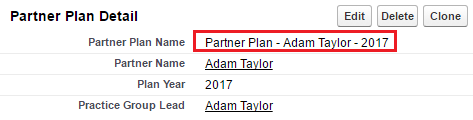
After clicking on the button "New" you will be redirected to the page with these paramerers and field "Name" will be filled.
Partner Plan Name required update after saving. It should be consists "Partner Plan" + "Partner Name" + "Year".

#This was done using Workflow Rule.
  • Rule Criteria: true;
  • Evaluation Criteria: Evaluate the rule when a record is created, and every time it's edited
  • Immediate Workflow Action: field update;
  • Formula value: "Partner Plan - " + Practice_Group_Lead__r.FirstName + " " + Practice_Group_Lead__r.LastName + " " - " + TEXT(Plan_Year__c)
After saving:

Monday, August 22, 2016

Storage Usage issue - remove legacy and redundant Task records

Salesforce Orgs with long usage history (more than 3 years) and small Data Storage limits (~1GB) could suffer storage limit issues (> 100%).

In most cases Task object brings the issues with Data Storage overuse.

Unfortunately as per SFDC limitation there is no quick way to delete/remove Tasks created 2 years ago and backwards.

However there is a workaround using custom reports/data export and data loader. Please do not hesitate to contact us if you will need help to leverage this approach.

STEP 1: Export Data
Go to the Setup -> Data Management -> Data Export and click Export Now or Schedule Export button.


Tick Task then click Start Export.


As a result you will be able to download .zip file which contains .csv with tasks data.


STEP 2: Do clean up using Data Loader
Open as excel file and sort data by created date, leave id of tasks which needed to delete. Then use Data Loader to delete these tasks

Approach is a little bit time consuming but works.

Wednesday, July 13, 2016

Native fields in Lead mapping for conversion

For Leads conversion process Salesforce provides out-of-box functionality for mapping Lead fields to Account/Contact/Opportunity.

Unfortunately there is a limitations - you can't map native Leads fields to target object's native field. For instance you can't map value from LeadSource ("native" Lead field) to AccountSource ("native" Account field).

Here is one of the possible ways to workaround the limitation. Solution could be modified based on particular business requirements. Please do not hesitate to contact us if you want to leverage this solutions in your Saleforce instance.

STEP 1: Create custom Formula(Text) field for Lead object
Name: LeadSourceCustom
Formula:  TEXT(LeadSource)

STEP 2: Create custom Text(100) field for Account object
Name: AccountSourceCustom

STEP 3: Amend Lead fields mapping to write value from LeadSourceCustom to AccountSourceCustom.

STEP 4: Create simple Trigger on Account object
/*
    Version        : 1.0
    Company        : Websolo inc. 
    Date           : 07/2016
    Description    : 
    Update History : 
*/
trigger AccountSourceTrigger on Account (before update,before insert) {
    for(Account a: Trigger.new){
        if(a.AccountSourceCustom__c != null && a.AccountSourceCustom__c != '' && (a.AccountSource == null || a.AccountSource == '')){
            a.AccountSource = a.AccountSourceCustom__c;
        } 
    }
}

As a result this trigger will update native AccountSource field with value from "native" LeadSource field.

EXTRA NOTE:
We can't use WorkFlow as a workaround because AccountSource field is picklist and when we create workflow action to update this field we can write only specific value from the picklist.

Friday, April 1, 2016

Account Contact Roles on Contact layout

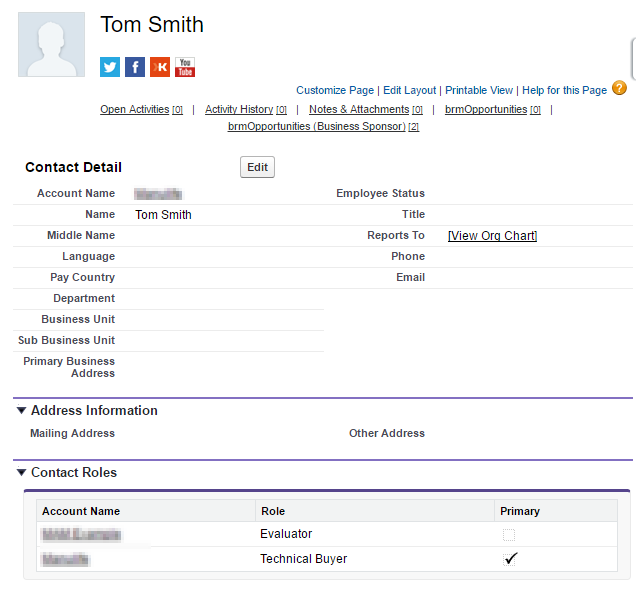
Salesforce has Contact Roles feature. Contact Role(s) could be applied for any Account and appear on Account layout as a related list. These Roles represent the role(s) that Contact(s) from the same or any other Account(s) plays in the Account. Such Roles could be also specified for Case, Contract, or Opportunity. When Contact roles defined, your team has more information to determine who to contact in particular circumstances.

Unfortunately Salesfroce does not provide any out-of-box tool to let User to see in which Account(s) the particular Contact involved. Means on Contact layout User can's see in which Account the Contact plays "Contact Role".

We want to share pretty easy solution to provide your Users such capability. Solution could be modified based on particular business requirements. Please do not hesitate to contact us if you want to leverage this solutions in your Salesforce instance.

STEP 1: Create VF page and APEX controller 

First you need to create custom Visualforce page which will display list of related to Contact Accounts and Contact Roles. Page's controller will consist of  SOQL SELECT related Account for current Contact. In our example we build Contact Roles for Account.

VF page:
ContactAccountsRolesDetails

<!-- 
Version      : 1.0
Company      : WebSolo Inc.
Date         : 03.2016
Description  : VF page "ContactAccountsRolesDetails" 
History      :             
-->
<apex:page standardController="Contact" extensions="ContactAccountsRolesDetailsContrExt" sidebar="false" showHeader="false" cache="false">
<style>
ul {
    margin-left: 0; 
    padding-left: 0;
}

li {
    list-style-type: none;
}    
</style>
    <apex:pageBlock >
        <apex:Messages />
        <apex:pageBlockTable value="{!listAccountContactRole}" var="acr" rendered="{!records}">
            <apex:column HeaderValue="Account Name">
                <!--<apex:outputText value="{!acr.Account.Name}"/>-->
                <a href="../{!acr.AccountId}" target="_parent"><apex:outputText value="{!acr.Account.Name}"/></a>
            </apex:column>
            <apex:column HeaderValue="Role">
                <apex:outputText value="{!acr.Role}"/>
            </apex:column>
            <apex:column HeaderValue="Primary">
                <apex:outputField value="{!acr.IsPrimary}"/>
            </apex:column>
        </apex:pageBlockTable>
        
    </apex:pageBlock>
</apex:page>


Controller:
ContactAccountsRolesDetailsContrExt


/*
    Version        : 1.0
    Company        : Websolo inc. 
    Date           : 03/2016
    Description    : 
    Update History : 
*/
public class ContactAccountsRolesDetailsContrExt
{ 
    public Id idContact;
    public Boolean records {get; set;}
    public List listAccountContactRole {get; set;}
    
    public ContactAccountsRolesDetailsContrExt(ApexPages.StandardController Controller) 
    {
        records = false;
        idContact = Controller.getRecord().id;
        listAccountContactRole = [SELECT id, AccountId, Account.Name, ContactId, Role, IsPrimary FROM AccountContactRole WHERE ContactId =: idContact];
        
        if (listAccountContactRole.size() != 0)
        {
            records = true;
        }
        else
        {
            Apexpages.Message noRecords = new Apexpages.Message(ApexPages.severity.INFO, 'No records to display');
            Apexpages.addMessage(noRecords);
        }
    }
}

STEP 2: Add VF page to layout

When created VF page could be added to Contact Layout as in example below.


Friday, March 4, 2016

Disable and animate APEX command button after click to avoid double submission


There is wide known scenario when click to APEX command button on custom VF page would take quite long time to perform calculation on server side and return the result back to UI. User may try to click the button again which will result in unexpected and undesired consequences. Especially if click to the button invokes DML operations.

There are a few workarounds to avoid such scenarios. In this post you will the most popular workarounds with analysis about their PROS and CONS.

Solution could be modified based on particular business requirements. Please do not hesitate to contact us if you want to leverage any of this solutions in your Salesforce instance.

Notes related to all examples below:

  • As a $Resource.statusbar you can use any .gif animated "in progress" image
  • In all demos we used external controller to build mathematic curves to simulate server activity

#1 Disabling of APEX command button using jQuery. Replacing button with animated GIF

Disabling the button once the user clicks the button could be the straight forward solution. In this solution we will replace the button once the user clicks the button using jQuery

VF page:
DisableApexCommandBut
ton to demo disable Button
<!-- 
Version      : 1.0
Company      : WebSolo Inc.
Date         : 03.2016
Description  : VF page "DisableApexCommandButton" to demo disable Button
History      :             
-->

<apex:page sidebar="false" showheader="false" cache="false" expires="0" controller="DisableApexCommandButtonContr">
    <script src="https://ajax.googleapis.com/ajax/libs/jquery/1/jquery.min.js"></script>
    <apex:composition template="{!$Site.Template}">
    <apex:define name="body">
    <apex:form style="width:550px;" id="f1">
        <apex:outputPanel >
            <apex:commandButton style="margin-top:20px;margin-left:250px;margin-bottom:25px;height:30px;font-size:12px" styleClass="b1" value="Generate" status="status" action="{!run}" rerender="f1"/>
            <div style="display: none;   margin-left: 250px;"  class="statusbardiv">
                <apex:image width="70px" url="{!$Resource.statusbar}" />
            </div>
            <apex:selectRadio value="{!chart}">
                <apex:selectOptions value="{!items}"/>
            </apex:selectRadio><p/>
            <apex:actionStatus id="status" onstart="$('.statusbardiv').css('display','block');$('.b1').css('display','none');" onstop="$('.statusbardiv').css('display','none');$('.b1').css('display','block');" />    
            <div>
                <apex:chart height="300" width="500" data="{!data}">
                    <apex:legend position="top"/>
                    <apex:axis title="Y" type="Numeric" position="left" grid="true" fields="valY"/>
                    <apex:axis title="X" type="Numeric" position="bottom" fields="valX" />
                    <apex:lineSeries title="{!chart}" axis="left" xField="valX" yField="valY"/>
                </apex:chart>
            </div>  
        </apex:outputPanel>
    </apex:form>
    </apex:define>
    </apex:composition>
</apex:page>

PROS: Easy to implement. Looks good.
CONS:  Requires jQuery library.

#2 Call custom div as an overhead "modal window"

Another solution would be not try to "disable" buttons, but to call custom modal window which will prevent user from multiple clicks and multiple form submission.

VF page: DisableApexCommandButton
<!--
    Version        : 1.0
    Company        : Websolo inc. 
    Date           : 03/2015
    Description    : Call custom div as an overhead "modal window"
    Update History : 
-->
<apex:page sidebar="false" showheader="false" cache="false" expires="0" controller="DisableApexCommandButtonContr">
    <script src="https://ajax.googleapis.com/ajax/libs/jquery/1/jquery.min.js"></script>
    <style>
    .disabledbutton {
        pointer-events: none;
        opacity: 0.4;
        background-color:#E1E1E1;
    }
    </style>
    <apex:composition template="{!$Site.Template}">
    <apex:define name="body">
    <apex:form style="width:550px;" id="f1">
        <apex:actionStatus id="status" onstart="$('#mydiv').addClass('disabledbutton');$('.statusbardiv').css('display','block');" onstop="$('#mydiv').removeclass('disabledbutton');$('.statusbardiv').css('display','none');" />
        <div style="display: none; position: fixed; z-index: 999; margin-left: 250px; margin-top: 200px"  class="statusbardiv">
            <apex:image width="70px" url="{!$Resource.statusbar2}" />
        </div>
        <div id="mydiv">
            <apex:outputPanel >
                <apex:commandButton style="margin-top:20px;margin-left:250px;margin-bottom:25px;height:30px;font-size:12px" styleClass="b1" value="Generate" status="status" action="{!run}" rerender="f1"/>
                <apex:selectRadio value="{!chart}">
                    <apex:selectOptions value="{!items}"/>
                </apex:selectRadio><p/>    
                <div>
                    <apex:chart height="300" width="500" data="{!data}">
                        <apex:legend position="top"/>
                        <apex:axis title="Y" type="Numeric" position="left" grid="true" fields="valY"/>
                        <apex:axis title="X" type="Numeric" position="bottom" fields="valX" />
                        <apex:lineSeries title="{!chart}" axis="left" xField="valX" yField="valY"/>
                    </apex:chart>
                </div>  
            </apex:outputPanel>
        </div>
    </apex:form>
    </apex:define>
    </apex:composition>
</apex:page>

PROS: Works better in some cases
CONS: Not visually perfect for some users who not used to such approach. Also requires jQuery library.

#3 Disabling of APEX command button using apex:facet method

In this solution we will replace the button with "Processing..." text once the user clicks the button

VF page:
DisableApexCommandButton
<!--
    Version        : 1.0
    Company        : Websolo inc. 
    Date           : 03/2015
    Description    : Disabling of APEX command button using apex:facet method
    Update History : 
-->
<apex:page sidebar="false" showheader="false" cache="false" expires="0" controller="DisableApexCommandButtonContr">

    <apex:composition template="{!$Site.Template}">
    <apex:define name="body">
    <apex:form style="width:550px;" id="f1">
        <apex:outputPanel >
            <apex:actionStatus id="status">
            <apex:facet name="stop">
                <apex:commandButton style="margin-top:20px;margin-left:250px;margin-bottom:25px;height:30px;font-size:12px;width:90px" action="{!run}" status="status" value="Generate" disabled="false" rerender="f1"/>
            </apex:facet> 
            <apex:facet name="start">
                <apex:commandButton style="margin-top:20px;margin-left:250px;margin-bottom:25px;height:30px;font-size:12px;width:90px" action="{!run}" status="status" value="Processing..." disabled="true"/>
            </apex:facet>
            </apex:actionStatus>
            <apex:selectRadio value="{!chart}">
                <apex:selectOptions value="{!items}"/>
            </apex:selectRadio><p/>
            <div>
                <apex:chart height="300" width="500" data="{!data}">
                    <apex:legend position="top"/>
                    <apex:axis title="Y" type="Numeric" position="left" grid="true" fields="valY"/>
                    <apex:axis title="X" type="Numeric" position="bottom" fields="valX" />
                    <apex:lineSeries title="{!chart}" axis="left" xField="valX" yField="valY"/>
                </apex:chart>
            </div>  
        </apex:outputPanel>
    </apex:form>
    </apex:define>
    </apex:composition>
</apex:page>

PROS: Efficient and user friendly
CONS: None

Sunday, December 27, 2015

Self recurring class to create test records in Salesforse object

While working on Round Robin Incidents Assignment Routine for BMC Remedyforce we've built a tool to auto create test Incident records. This tool creates new record every one minute simulating real environment.

After minor modifications the same solution could be used for similar purposes to simulate creating records in standard or custom from SFDC UI. Below we provided example of self recurring class to create test Contact records.

The code has comments however please feel free to Contact Us if you have any questions.

APEX Class: AutoContactsCreator
/*
Version      : 1.0
Company      : WebSolo inc.
Date         : 12.2015
Description  : APEX class to automatically create new test Contact record (with some test data) each 5 minutes
History      :             
*/
global class AutoContactsCreator implements Schedulable{
 //Execute method
    global void execute(SchedulableContext SC) {
        //Code to check if test Account with name 'Test Account' exists and to create one if not.
        List acc = [SELECT id FROM Account WHERE Name = 'Test Account' limit 1];
        if(acc.size() == 0){
            Account NewAcc = new Account();
            NewAcc.Name = 'Test Account';
            insert NewAcc;
            acc.add(NewAcc);
        }
        //Code to check if test Contacts (created before with name AutoContact) exist and to identify the most recent Name (to auto increase name for new one).
        Contact con = new Contact();
        con.AccountId = acc[0].id;
        //Get next number of autocontact
            //Get last AutoContact record and parce LastName value
             List lastCon = [SELECT Name FROM Contact WHERE LastName LIKE 'AutoContact%' ORDER BY CreatedDate DESC LIMIT 1];
             //If exist, substring most recent name OR start form 1
             Integer NumOfNextAutoCon;
             if(lastCon.size() != 0){
                 String nameOfLastAutoCon = lastCon[0].Name;
                 NumOfNextAutoCon = Integer.valueOf(nameOfLastAutoCon.substringAfter('AutoContact')) + 1;
             }
             else{
                NumOfNextAutoCon = 1;
             }
        //Prepare values for First/Last Name, Phone, Email     
        con.FirstName = 'Test';
        con.LastName = 'AutoContact' + NumOfNextAutoCon;
            //Generate random number for phone from 1000000 to 9999999
            Integer uniqueVal =  Math.round(Math.random()*1000000) + 999999 ;
        con.Phone = '416' + uniqueVal;
        con.Email = 'AutoContact' + NumOfNextAutoCon + '@TestAccount.com';
        insert con;
        
        //This code section will schedule next class execution in 5 minutes from now
        datetime nextScheduleTime = system.now().addMinutes(1);
        string minute = string.valueof(nextScheduleTime.minute());
        string second = string.valueof(nextScheduleTime.second ());
        string cronvalue = second+' '+minute+' * * * ?';
        string jobName = 'AutoContactsCreator ' + nextScheduleTime.format('hh:mm');
        AutoContactsCreator p = new AutoContactsCreator();
        system.schedule(jobName, cronvalue , p);
 
        //This code section to be used to abort auto-scheduled job
        system.abortJob(sc.getTriggerId());
    }
    //Method to start shedule job form console
    public void startJob(){
        datetime nextScheduleTime = system.now().addMinutes(1);
        string minute = string.valueof(nextScheduleTime.minute());
        string second = string.valueof(nextScheduleTime.second ());
        string cronvalue = second+' '+minute+' * * * ?' ;
        string jobName = 'AutoContactsCreator ' + nextScheduleTime.format('hh:mm');   
        AutoContactsCreator p = new AutoContactsCreator();
        system.schedule(jobName, cronvalue , p);    
    }
    //Method to abort shedule job (with 'AutoContactsCreator' name) form console
    public void deleteJob(){
        CronTrigger job = [SELECT Id, CronJobDetail.Id, CronJobDetail.Name, CronJobDetail.JobType FROM CronTrigger where CronJobDetail.Name LIKE 'AutoContactsCreator%'];
        system.abortJob(job.Id);
    }
 }

APEX Class: AutoContactsCreator_TESTclass
/*
Version      : 1.0
Company      : WebSolo inc.
Date         : 12.2015
Description  : APEX test coverage class for AutoContactsCreator class
History      :             
*/
@isTest
private class AutoContactsCreator_TESTclass {
    static testMethod void myUnitTest() {
        AutoContactsCreator autoCrCon = new AutoContactsCreator();
        autoCrCon.StartJob();
        autoCrCon.deleteJob();
        system.schedule('Test', '0 0 * * * ?' , autoCrCon);
    } 
}

SFDC Developer Console commands to use with AutoContactsCreator class

To execute self recurring class
AutoContactsCreator autoCrCon = new AutoContactsCreator();
autoCrCon.StartJob();

To abort self recurring class
AutoContactsCreator autoCrCon = new AutoContactsCreator();
autoCrCon.deleteJob();
Note: You also can abort the job manually here Setup -> Jobs -> Scheduled Jobs

Helpful command to DELETE all previously created by self recurring class test records
DELETE [SELECT id FROM Contact WHERE LastName LIKE 'AutoContact%'];

Monday, June 8, 2015

Custom Salesforce Round Robin Incidents Assignment Routine for BMC Remedyforce

Salesforce Round Robin Assignment Routine for BMC Remedyforce was built for companies wanting to automatically distribute and assign incoming Incidents to the Members of different Support Teams (Groups) depending on Incident creation time and Group's Time Zone.

We have multiple Assignment Routine implementations for different businesses who use BMC Remedyforce and Salesfroce. Armed with multiple extra features Round Robin Incidents Assignment Routine for BMC Remedyforce works extremely well and deserved great references.

For instance please take a look at this reference - shared by our client who we recently helped with the RemedyForce Round Robin customization:
https://communities.bmc.com/ideas/3675#comment-62436

Please do not hesitate to Contact Us if you have any questions or wish to add this extremely useful functionality to your Salesforce with Remedyforce instance. We'll happy to reply with answers, licensing options and pricing details.


Round Robin for BMC Remedyforce
Most important Functional Features:

- "Assignment Groups" Tab (Console) to manage multiple Groups of Users involved in "Round Robin" assignment routine and monitor their current indicators such as Time Zone, Assignment Score, Status, etc.
- Capability to enable/disable particular Group(s) from round robin cycle
- Capability to assign Members to Groups based on Shifts ("Assignment Time Frame" feature)
- Capability to activate/deactivate Group's Members from round robin cycle if the Member is sick or on vacation
- Potential capability for Members to "check out/check in" from/to round robin cycle ("Self Management" feature)
- Capability to set Share for each Member in the Group - as a % of the total records received from assignment Queue during the day ("Not Equal Share" feature)
- Reporting capabilities to help manager to track Round Robin Assignment statistics

Other Details:
- 100% Native SFDC Application. Means no servers or outside services required.
- Supports following Salesforce.com Editions: Enterprise, Unlimited, Developer
- Instant processing time, no assignment delays

Solution functionality could be amended and enhanced to meet additional particular business requirements. Here are few possible scenarios:
- "Day time" Group(s) to handle the normal working day Incidents and "on call" Group for off-hours support
- Assign Incidents to Group(s) designated to particular Incident Priority/Impact or any other set of custom criteria
- Auto login/logout Members from/to Round Robin cycle based on their login and log out time in Salesforce. So that they wouldn't receive Incidents if they are not actually working now.

Screens
1) Assignment Groups ConsoleAssignment Groups Console

2) Assignment Group layout
Assignment Group layout

 3) Group Member layout
Group Member layout

Thursday, May 14, 2015

Let your Contacts update their Email preferences using Force.com Site without authentication. Configuring the public Force.com Site.
Force.com Sites is relatively known feature which allows SFDC developers to set up public-facing sites/pages hosted by Salesforce platform. Using Force.com Site you can build micro web sites with one landing page or complicated sites with multiple pages. Such sites could have complicated flows to expose/collect information from/to Salesfroce. Advanced Force.com sites could even (for instance) accept credit card payments.

In this post we will show how to built quite easy but useful Force.com site and page with a purpose to let your Salesforce Contacts update their Email preferences themself, without contacting your support team. I.e. unsubscribe by updating Email Opt Out checkbox in related Salesforce record.

Solution could be modified based on particular business requirements.
Please do not hesitate to contact us if you want to leverage this solutions in your Saleforce instance.

Here's how the solution flow works:
  1. SFDC (or mass mail application) sends marketing emails out to customers (SFDC Contacts).
  2. Email will consist of "manage my subscription" or "unsubscribe" link. The link will be unique for each Contact and consist of "encrypted" Contact's ID. Encrypting is recommended to hide real SFDC Contatc ID (15-character) for security reasons. See the link with “hash id” (in yellow) below as an example.
  3. End user clicks on that URL and opens a Force.com site page, change his Email preferences and click "Update"to commit updates to SFDC.
Unique URL in email for end customer will looks like this:
http://yourdomain.force.com/emailpreferences/profile/fd90b5cd3bda11119f79a0c8131ab2ac7266d3f54add67f276c396e74f906da4

Step 0: Create new trigger to populate HashId field on Contact object

As mentioned above we suggest to encrypt native SFDC ID to improve your Force.com site security.
This technique allows to hide and not publicly expose your SFDC Contact record's ID. Instead of this Force.com site will use Crypto generated (algorithm SHA256) compact representations of the original ID value which will be "decrypted" back by URL rewriter controller class (see below).

First please create new HashId [HashId__c, Text (255)] field on Contact object. To make the field indexed by SFDC (and improve Force.com site response time) set External ID check box to TRUE.
Then create ContactHashId trigger to populate the field with encrypted value. 

NOTE: Trigger fires on "after insert", "before update" events on Contact object. Please make sure you will "update" existing Contacts using APEX scheduled Job or DataLoader.


APEX trigger: ContactHashId
/*
Version      : 1.0
Company      : WebSolo inc.
Date         : 05.2015
Description  : trigger to populate the HashId field on Contact object (used by PublicEmailPreferencesURLRewriter class)
History      :             
*/

trigger ContactHashId on Contact (after insert, before update) {

    // Generate hash ids for all contacts that don't have them.
    List<Contact> contactsToUpdate = new List<Contact>();
    for (Contact c : Trigger.new) {
        if (c.HashId__c == null) {
            String hashId = EncodingUtil.convertToHex(Crypto.generateDigest('SHA-256', Blob.valueOf((String)c.Id)));
            if (Trigger.isInsert) {
                contactsToUpdate.add(new Contact(Id = c.Id, HashId__c = hashId));
            } else {
                c.HashId__c = hashId;
            }
        }
    }
    if (!contactsToUpdate.isEmpty()) {
        update contactsToUpdate;
    }
}

Step 1: Set up Unique Domain Name for your SFDC instance

You can set up your Force.com Site by going to Setup | Develop | Sites

If your company does not have Force.com Site yet, you will be able to register a Force.com domain name that you like (upon availability).

NOTE: Be careful when registering the domain name on your Production instance. After registration you will not be able to change it! As per Salesforce "You cannot modify your Force.com domain name after the registration process."

Step 2: Create Force.com site components (VF page, APEX controllers, template) 

Create and save following Force.com site components.

VF page (Active Site Home Page): PublicEmailPreferences
<!-- 
Version      : 1.0
Company      : WebSolo Inc.
Date         : 05.2015
Description  : VF page "PublicEmailPreferences" to serve as a page in Force.com site
History      :             
-->

<apex:page controller="PublicEmailPreferencesController" cache="false" expires="0" showHeader="false" sidebar="false">

<style>
body { font-size: 100%; }
.contactInfo { margin: 20px 0px; }
.contentPanel { float: left; margin: 5px 0px 20px 20px; }
.contactLabel { float: left; font-weight: bold; width: 10em; }
h1 { color: #cc6611; font-size: 200%; padding-top: 25px;}
input[type="checkbox"] { height: 20px; width: 20px; }
.detailPanel { float: left; margin-left: 10px; width: 16em;margin-top:10px }
.logo { margin: 0px 100px 0px 20px; width: 250px; }
.selectionLabelPanel { float: left; margin-bottom: 10px; }
.selectionLabel { font-weight: bold; }
.selectionCheckboxPanel { float: right; }
</style>

<apex:composition template="{!$Site.Template}">
<apex:define name="logo">
<!-- 
You can add the logo here as a link to static resource 
<apex:image styleClass="logo" value="{!$Resource.LOGO_RESOURCE_NAME}" />
-->
</apex:define>

<apex:define name="headline">
  <h1>Email Opt Out Preferences</h1>
</apex:define>

<apex:define name="body">

  <apex:form >
  <apex:outputPanel id="leftPanel" layout="block" rendered="{!showPrefs}" styleClass="contentPanel" >    
    <apex:outputPanel layout="block" >
      <apex:outputText value="Keep your email preferences up to date." />
    </apex:outputPanel>    
    <apex:outputPanel layout="block" styleClass="contactInfo" >
      <apex:outputPanel layout="block" styleClass="contactLabel" >
        <apex:outputText value="Email" />
      </apex:outputPanel>
      <apex:outputPanel layout="block" >
        <apex:outputText value="{!contact.Email}" />
      </apex:outputPanel>
      <apex:outputPanel layout="block" styleClass="clearBoth" />
    </apex:outputPanel>    
    <apex:outputPanel layout="block" styleClass="contactInfo" >
      <apex:outputPanel layout="block" styleClass="contactLabel" >
        <apex:outputText value="First Name" />
      </apex:outputPanel>
      <apex:outputPanel layout="block" >
        <apex:outputText value="{!contact.FirstName}" />
      </apex:outputPanel>
      <apex:outputPanel layout="block" styleClass="clearBoth" />
    </apex:outputPanel>    
    <apex:outputPanel layout="block" styleClass="contactInfo" >
      <apex:outputPanel layout="block" styleClass="contactLabel" >
        <apex:outputText value="Last Name" />
      </apex:outputPanel>
      <apex:outputPanel layout="block" >
        <apex:outputText value="{!contact.LastName}" />
      </apex:outputPanel>
      <apex:outputPanel layout="block" styleClass="clearBoth" />
    </apex:outputPanel>    
    <apex:outputPanel layout="block" styleClass="contactInfo" >
      <apex:outputPanel layout="block" styleClass="clearBoth" />
    </apex:outputPanel>    
    <apex:outputPanel layout="block" >
      <apex:outputText value="To request an update to your profile information, please kindly contact our " />
      <apex:outputLink target="_top" style="color:#cc6611" value="mailto:SUPPORT%40YOURCOMAPNYDOMAIN.com?subject=Please%20update%20my%20information">support team</apex:outputLink>
      <apex:outputText value="." />
    </apex:outputPanel>    
  </apex:outputPanel>
  
  <apex:outputPanel layout="block" styleClass="clearBoth" />
  
  <apex:outputPanel id="rightPanel" layout="block" rendered="{!showPrefs}" styleClass="contentPanel" >    
    <apex:outputPanel layout="block" >
      <apex:outputText value="Select the checkbox if you do not want to receive emaild form us." />     
    </apex:outputPanel>
    <apex:outputPanel layout="block" styleClass="detailPanel" >    
      <apex:outputPanel layout="block" styleClass="selectionPanel" >
        <apex:outputPanel layout="block" styleClass="selectionLabelPanel" >
          <apex:outputText styleClass="selectionLabel" value="Opt Out Of Emails" />
        </apex:outputPanel>
        <apex:outputPanel layout="block" styleClass="selectionCheckboxPanel" >
          <apex:inputCheckbox styleClass="selectionCheckbox" value="{!subEmailOptOut}" />
        </apex:outputPanel>
      </apex:outputPanel>        
    </apex:outputPanel>
    <apex:outputPanel layout="block" styleClass="clearBoth" />
    <apex:outputPanel id="buttonPanel" layout="block" >
      <apex:actionStatus id="saveStatus">
        <apex:facet name="start">
            <apex:outputPanel >
            Updating...&nbsp;<img src="{!$Resource.AnimatedBusy}" />
          </apex:outputPanel>
        </apex:facet>
        <apex:facet name="stop">
          <apex:commandButton action="{!updatePreferences}" rerender="messagesPanel" status="saveStatus" style="background: #cc6611; color: white; font-size: 200%; margin-top: 20px;" styleClass="updateBtn" value="Update" />
        </apex:facet>
      </apex:actionStatus>
    </apex:outputPanel>    
  </apex:outputPanel>

  <apex:outputPanel layout="block" styleClass="clearBoth" />

  <apex:outputPanel id="messagesPanel" layout="block" style="max-width: 400px;" >
    <apex:outputPanel layout="block" rendered="{!hasMessages}" style="{!messagePanelStyle}" >
      <apex:repeat value="{!messages}" var="message">
        <apex:outputText value="{!message}" />
      </apex:repeat>
    </apex:outputPanel>
  </apex:outputPanel>

  </apex:form>

</apex:define>

</apex:composition>

</apex:page>

NOTE: For $Resource.AnimatedBusy please use any animated GIF illustrate "progress"

VF page controller (for Active Site Home Page): PublicEmailPreferencesController
/*
Version        : 1.0
Company        : WebSolo Inc.
Date           : 05.2015
Description    : controller for PublicEmailPreferences VF page 
Update History :

*/ 

public without sharing class PublicEmailPreferencesController {

    public Contact contact { public get; private set; }
    public Boolean subEmailOptOut { public get; public set; }
    public String rsaEmail { public get; private set; }
    public String rsrEmail { public get; private set; }
    public List<String> messages { public get; private set; }
    public Boolean hasMessages { public get {return messages != null && !messages.isEmpty();} private set; }
    public String messagePanelStyle { public get {return hasErrorMessage ? ERROR_STYLE : INFO_STYLE;} private set; }
    public Boolean showPrefs { public get; private set; }
    
    private Boolean hasErrorMessage = false;
    
    public final static String URL_PARM_ID = 'id';
    public final static String INFO_STYLE = 'color: green; background-color: #efe; padding: 10px; margin: 10px; border: 1px solid green;';
    public final static String ERROR_STYLE = 'color: red; background-color: #fee; padding: 10px; margin: 10px; border: 1px solid red;';
    public final static String ERR_CONTACT_NOT_FOUND = 'We are unable to retrieve your information at this time.';
    public final static String ERR_PREFS_UPDATE_FAILED = 'We are unable to update your preferences at this time.';
    public final static String ERR_PREFS_UPDATE_SUCCEEDED = 'Your preferences have been updated.';
    
    public PublicEmailPreferencesController() {
        
        clearMessages();
        
        String contactId = ApexPages.currentPage().getParameters().get(URL_PARM_ID);
        System.debug('id=' + contactId);
        if (contactId != null) {
            try {
                contact = getContactForId(contactId);
                if (contact != null) {
                    subEmailOptOut = contact.HasOptedOutOfEmail;
                    showPrefs = true;
                }
            } catch (Exception e) {
                addErrorMessage(ERR_CONTACT_NOT_FOUND);
            }
        } else {
            addErrorMessage(ERR_CONTACT_NOT_FOUND);
        }
    }
    
    private void addErrorMessage(String message) {
        if (messages == null) messages = new List<String>();
        messages.add(message);
        hasErrorMessage = true;
    }
    
    private void addInfoMessage(String message) {
        if (messages == null) messages = new List<String>();
        messages.add(message);
    }
    
    private void clearMessages() {
        if (messages == null) messages = new List<String>();
        messages.clear();
        hasErrorMessage = false;
    }
    
    private Contact getContactForId(String contactId) {
        Contact contact = null;
        List<Contact> contacts = [SELECT HasOptedOutOfEmail, Email, FirstName, Id, LastName FROM Contact WHERE Id = :contactId];
        if (contacts.size() == 1) {
            contact = contacts[0];
            
        } else {
            addErrorMessage(ERR_CONTACT_NOT_FOUND);
        }
        return contact;
    }
    
    public PageReference updatePreferences() {
        try {
            clearMessages();
            contact.HasOptedOutOfEmail = subEmailOptOut;
            update contact;
            addInfoMessage(ERR_PREFS_UPDATE_SUCCEEDED);
        } catch (Exception e) {
            addErrorMessage(ERR_PREFS_UPDATE_FAILED);
        }
        return null;
    }
}


VF page (template for site VF pages): PublicSiteTemplate
<!-- 
Version      : 1.0
Company      : WebSolo Inc.
Date         : 05.2015
Description  : VF page "PublicSiteTemplate" to serve as a Force.com Site Template
History      :             
-->
<apex:page showHeader="false" sidebar="false" id="PublicSiteTemplate" cache="false" expires="0" >
    <head>
        <title>FPC</title>
        
        <style>
            #fullContainer { }
            #headerContainer { padding: 0px 10px; }
            #logoContainer { float: left; }
            #contentContainer { padding-left: 10px; }
            #headlineContainer { float: left; margin-top:10px}
            #footerContainer { padding-left: 10px; }
            #footerbar { background-color: #cc6611; line-height: 0.5em; max-width: 650px; }
            .clearBoth { clear: both; }
        </style>
    </head>
    <body>
        <div id="fullContainer">
            <div id="headerContainer">
                <div id="logoContainer">
                    <apex:insert name="logo"/>
                </div>
                <div id="headlineContainer">
                    <apex:insert name="headline"/>
                </div>
                <div class="clearBoth"></div>
            </div>
            <div id="contentContainer">
                <div id="mainContent">
                    <apex:insert name="body"/>
                </div>
                <div class="clearBoth"></div>
            </div>
            <div id="footerContainer">
                <div id="footerLinks"></div>
                <div class="clearBoth"></div>
                <div id="footerbar">&nbsp;</div>
                <div class="clearBoth"></div>
            </div>
        </div>
    </body>
</apex:page>


APEX class (URL rewriter): PublicEmailPreferencesURLRewriter
/*
Version      : 1.0
Company      : WebSolo inc.
Date         : 05.2015
Description  : controller to support URL Rewrite for Force.com VF page "PublicEmailPreferences"
History      :             
*/

global class PublicEmailPreferencesURLRewriter implements Site.UrlRewriter {
    public static final String EMAIL_PROFILE_FRIENDLY = '/profile/';
    public static final String EMAIL_PROFILE_VF_PAGE_BASE = '/PublicEmailPreferences';
    public static final String EMAIL_PROFILE_VF_PAGE = EMAIL_PROFILE_VF_PAGE_BASE + '?' + PublicEmailPreferencesController.URL_PARM_ID + '=';

    global PageReference[] generateUrlFor(PageReference[] urls) {
        
        System.debug('generateUrlFor has been invoked for ' + urls);
        PageReference[] pageRefs = new List<PageReference>();
        
        Set<Id> cIds = new Set<Id>();
        for (PageReference pRef : urls) {
            String urlStr = pRef.getUrl();
            if (urlStr.startsWith(EMAIL_PROFILE_VF_PAGE_BASE)) {
                cIds.add(urlStr.substring(EMAIL_PROFILE_VF_PAGE.length()));
            }
        }
        
        Map<Id, Contact> contactsById = new Map<Id, Contact>([SELECT Id, HashId__c FROM Contact WHERE Id IN :cIds]);
        for (PageReference pRef : urls) {
            String urlStr = pRef.getUrl();
            pageRefs.add(
                urlStr.startsWith(EMAIL_PROFILE_VF_PAGE_BASE) ?
                new PageReference(EMAIL_PROFILE_FRIENDLY + contactsById.get(urlStr.substring(EMAIL_PROFILE_VF_PAGE.length())).HashId__c) :
                pRef
            );
        }
         return pageRefs;
    }
    
    global PageReference mapRequestUrl(PageReference url) {
        
        PageReference pageRef = null;
        
        String urlStr = url.getUrl();
        System.debug('mapping url=' + urlStr);
        
        if (urlStr.startsWith(EMAIL_PROFILE_FRIENDLY)) {
            String hashId = urlStr.substring(EMAIL_PROFILE_FRIENDLY.length());
            if (hashId != '') {
                List<Contact> contacts = [SELECT Id FROM Contact WHERE HashId__c = :hashId];
                if (!contacts.isEmpty()) {
                    pageRef = new PageReference(EMAIL_PROFILE_VF_PAGE + contacts[0].Id);
                } else {
                    pageRef = new PageReference(EMAIL_PROFILE_VF_PAGE);
                }
            }
        }
        return pageRef; 
    }
}


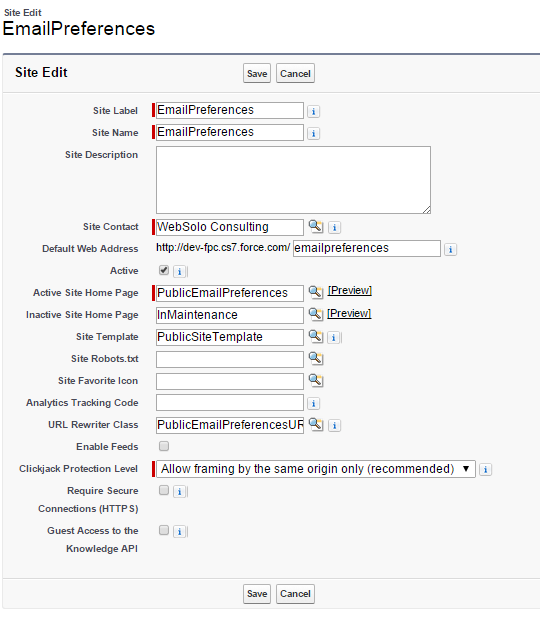
Step 3: Configuring new Force.com Public Site

Press the "New" button to create a new Force.com Site and enter the following values – you can leave all the other fields as-is. Click Save when done.
    • Site Label – name (may contain spaces) used to identify the site in the Salesforce user interface. In this example we use EmailPreferences. See screenshot below.
    • Site Name – name (cannot contain spaces) used to identify the site in code
    • Site Contact – Salesforce user who will receive email notifications about any problems with the site.
    • Default Web Address – the part of the site URL that will appear immediately after the domain name, e.g. “domainname.force.com/defaultwebaddress”.
    • Active – makes the site available for use. Can be set manually, or the Activate and Deactivate buttons on the Site page can be used to change tise setting.
    • Active Site Home Page – name of the Visualforce page that serves as the home page of the site when it is active: PublicEmailPreferences.
    • Inactive Site Home Page – name of the Visualforce page that serves as the home page of the site when it is not active: InMaintenance (automatically generated by Salesforce).
    • Site Template – name of the template that specifies the structure of all site pages: PublicSiteTemplate.
    • URL Rewriter Class – name of the class that translates public-facing URLs to internal ones: PublicEmailPreferencesURLRewriter. This class converts the public-facing contact ids into Salesforce record ids, so it provides one level of data security.
    • Clickjack Protection Level – the recommended value is compatible with the operation of the site.
Configuring new Force.com Public Site


Step 4: Adjusting Site Profile Permissions

Please proceed up with following steps:
    • On the Site Details page, click Public Access Settings.
    • Click Object Settings select Contact object and click Edit.
    • For Email Opt Out field tick Read and Edit 
    • Click Save.
    • Return to Profile Overview page select Visualforce Page Access and click Edit.
    • On the Enabled Visualforce Page list, select following pages and click Save:
      • PublicEmailPreferences
      • PublicEmailTemplate
    • Return to Profile Overview page select Apex Class Access and click Edit.
    • On the Enabled Apex Classes list, select following classes and click Save:
      • PublicEmailPreferencesController 
      • PublicEmailPreferencesURLRewriter
    • Note that the Enabled Visualforce Pages list may (and should) automatically include default pages associated with the site.
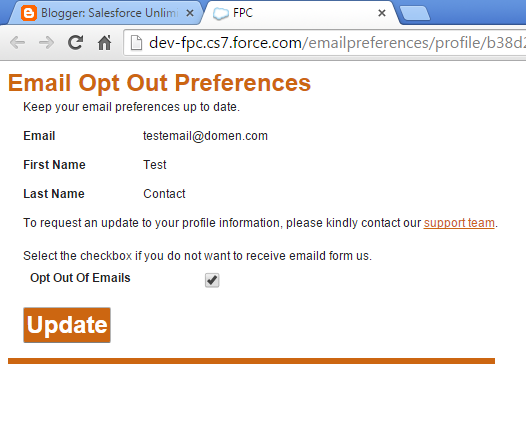
Step 5:  Test your new Force.com Site

When all done you can open the Force.com site URL an test it in action.
See how it suppose to looks like on our screenshot.


Force.com Site